What’s new in Clipdiary 5.73
October 30, 2026
Find clips more quickly, make the history easier to read, and get a clearer view of the content you have copied. Here is a closer look at what is new.
Find clips by date
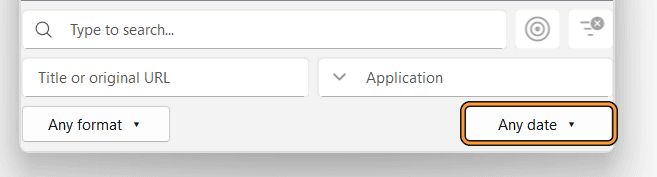
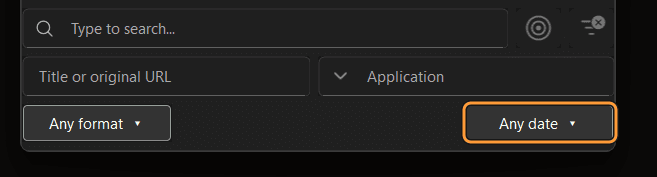
Remember when you copied something, but not the exact words? Narrow the history to today, yesterday, the last seven days or the last month. You can also choose a custom date range.
Use the date filter on its own or alongside the other search fields to narrow down the results.
Where to find it: File → Quick Options → Advanced search (or Ctrl+F5), then select Any date.
Choose an application in advanced search
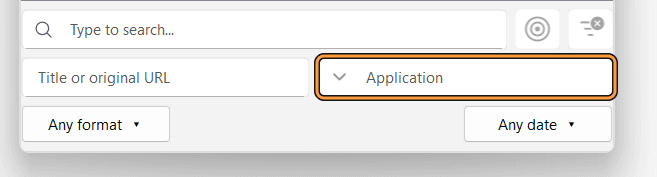
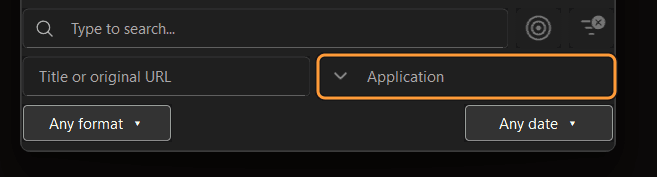
Looking for something copied from a particular program? The Application field in advanced search now offers a list of application names, so you can select one instead of entering it yourself.
Where to find it: File → Quick Options → Advanced search (or Ctrl+F5), then open the Application list.
Make the list easier to read
Adjust the height of clip and snippet rows to fit more items on screen or give each item more space. You can also choose how the selected row is highlighted.
Appearance changes are previewed as you make them, making it easier to compare the available choices.
Where to find it: File → Options (or F4) → Interface.
Preview clips on hover
Move the pointer over a clip or snippet to update the preview after a short delay without changing the selected item. This makes it easier to inspect several entries while keeping your place in the list. If you prefer, you can turn off hover previews in the settings.
You can also set a fixed preview size and adjust its width and number of text lines.
Where to find it: File → Options → Interface → Clip preview.
A clearer settings window
The settings window has been redesigned with clearer controls and explanations, making it easier to find options and understand what they do.
Where to find it: File → Options (or F4).
Check for updates
Clipdiary can check for new versions and help you update the program. You can choose whether it checks automatically.
Where to find it: File → Options → General → automatic update checks.
PNG images with transparency
PNG data copied to the clipboard is supported with transparency preserved in previews and exports. This is useful for images such as icons and logos that need a transparent background.
Review history before cleaning it up
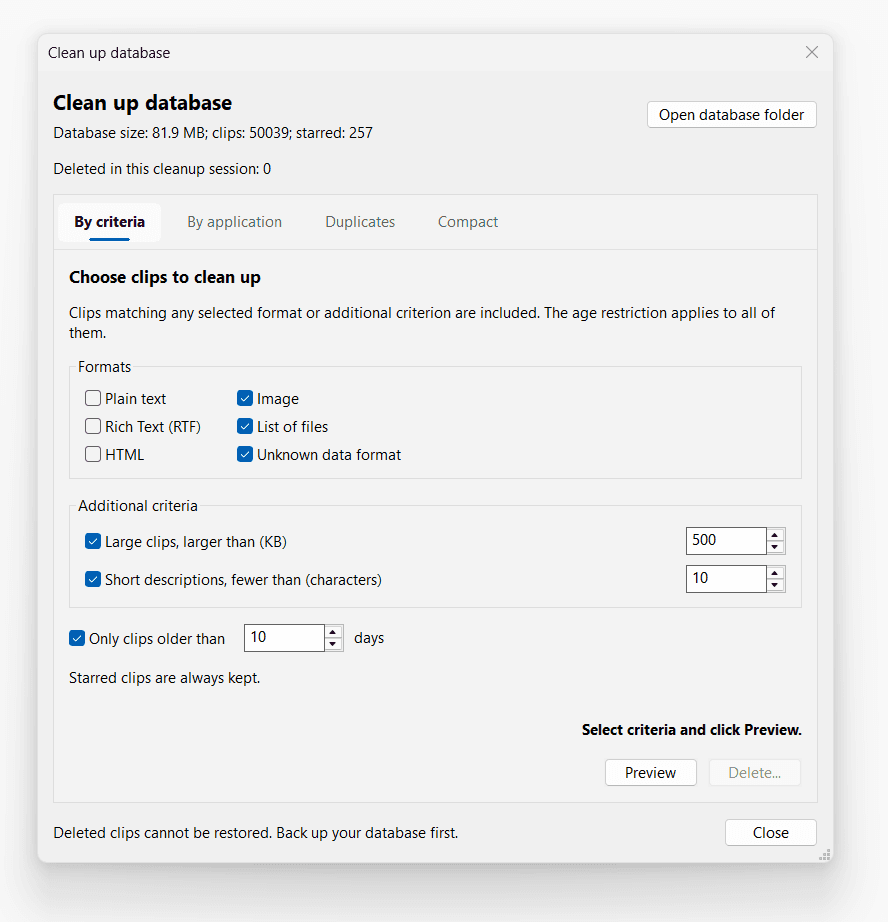
Over time, your clipboard history can fill up with clips. Some are worth keeping for the long term, while others are useful only briefly. Old images, for example, can take up a lot of space, and short text fragments of just a few characters are unlikely to be needed later.
Cleaning up your history from time to time helps you remove these clips, reduce the size of the database and find important clips more quickly. Removing a large amount of unnecessary data can also improve Clipdiary’s performance.
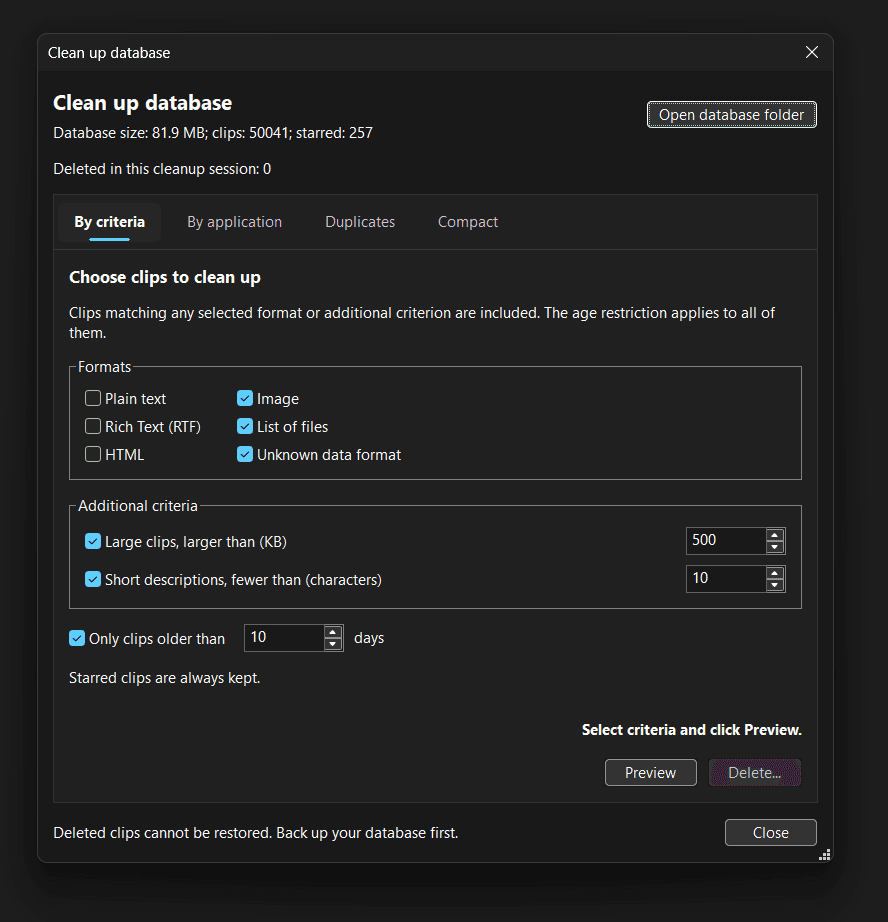
In the redesigned database cleanup window, you can choose clips for deletion by age, size, content type or the application they were copied from. You can also find and remove duplicates. Before deleting anything, you can see how many clips were found and review them in your history. Starred clips are kept.
After cleaning up, you can compact the database in the same window to free up disk space. We recommend checking your history from time to time, especially if you often copy images or keep a large history.
Where to find it: select File → Clean up database.
Other improvements
This release also includes bug fixes and improvements to stability, performance and usability.